
For booklets of every kind
A free PDF booklet maker for home printing.
Printer booklet options are hidden, confusing and show you almost nothing before you print. Foldio arranges your pages, shows exactly what goes on each sheet, and gives you one ready-to-print PDF. No upload, no sign-up.
- 01
Pages in booklet order
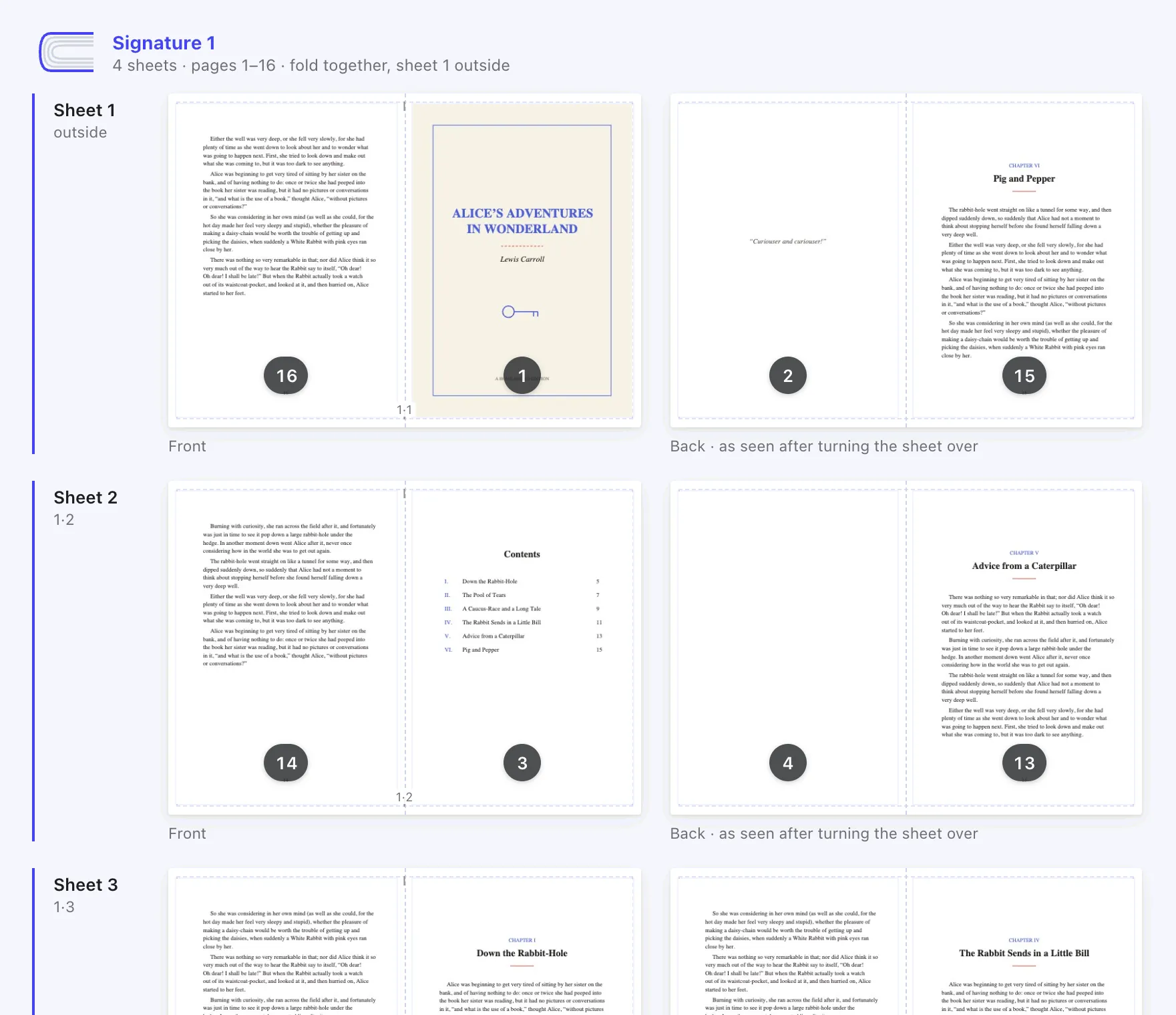
Fold the printed stack in half and the pages read 1, 2, 3… Foldio works out the order and adds blank pages so the count divides by four.
- 02
Mix several files
Combine PDFs and photos into one booklet, reorder pages by dragging, and insert blank pages where you need them.
- 03
See it before you print
A preview of every sheet, front and back, and the finished booklet to flip through.
- 04
Backs the right way up
A one-time duplex test means your printer’s back sides never come out upside down.
Step by step
Print a PDF booklet in four steps.
- 01
Add your PDF
Open Foldio and drag your file into the window. Add more files or images if your booklet combines several.
- 02
Make it one booklet
Under “What are you making?”, choose Booklet or magazine, so everything folds as one stapled booklet.
- 03
Print on the short edge
Export the PDF, then print two-sided with “flip on short edge” and the scale at 100% (actual size).
- 04
Fold and staple
Fold the stack in half, crease it firmly, and staple along the fold. A long-reach stapler makes this easy.
14 days free
Try everything in Pro, free for 14 days.
No card needed and nothing to cancel. When the trial ends you go back to Free and keep every book you made.
Questions
Good to know.
Why does a booklet need a multiple of four pages?
Each folded sheet makes four pages: two on the front of the paper and two on the back. When your page count isn’t a multiple of four, Foldio adds blank pages automatically and lets you choose where they go.
Should I flip on the long edge or the short edge?
For booklets, with two pages side by side on landscape paper, choose flip on short edge. If your backs still come out upside down, run Foldio’s duplex test once and it will correct the export for your printer.
Can I print a booklet without a duplex printer?
Yes. Tell Foldio your printer prints one side at a time and it prints your book in two rounds: the fronts, then the backs after you put the pile back in. A two-sheet test, once per printer, shows how your pile goes back in and in what order.
How is this different from my printer’s booklet option?
Printer and PDF-reader booklet options work, but they show little of the result before you print and are hard to adjust. Foldio shows every sheet, lets you reorder and edit pages, handles right-to-left books, and keeps your projects for next time.
Foldio is also for